


 Voluntary choice
 Transparent amount
 Documentable contribution



Traditional till
In-store POS systems.
Your customers
Integrate HapGree into the purchase journey. The customer chooses whether to contribute and receives a code to use online.

We check the system in use.
Estimate and amount before confirmation.
The reference appears on the receipt.
Access the path and the documentation.
The estimate depends on the configured data and method; it does not automatically represent the product's whole life cycle.
An optional, clear and non-pre-selected choice. We configure the flow based on your business's system.
Compatibility and availability must be verified case by case.
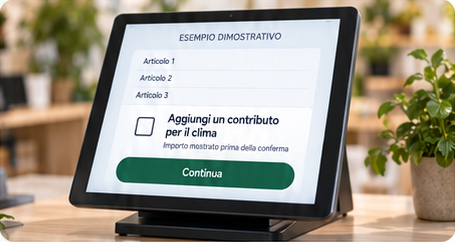
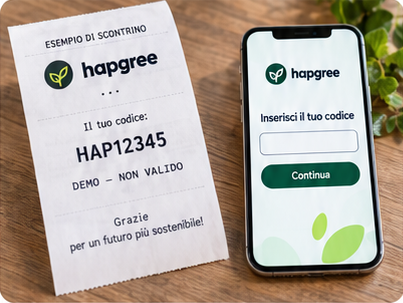
Illustrative example: the code shown cannot be used.
Possible integration contexts, to be assessed on the actual system.
In-store POS systems.

Mobile solutions.

Automated sales points.

Integrations in existing apps.
Find out how to turn it into a concrete contribution.
See the path for individualsQuick answers to the most common questions about integrating with your checkout.